Fine-Tuning an AI-Generated F1 Sketch With Koha's Editing Suite
 Koha Team•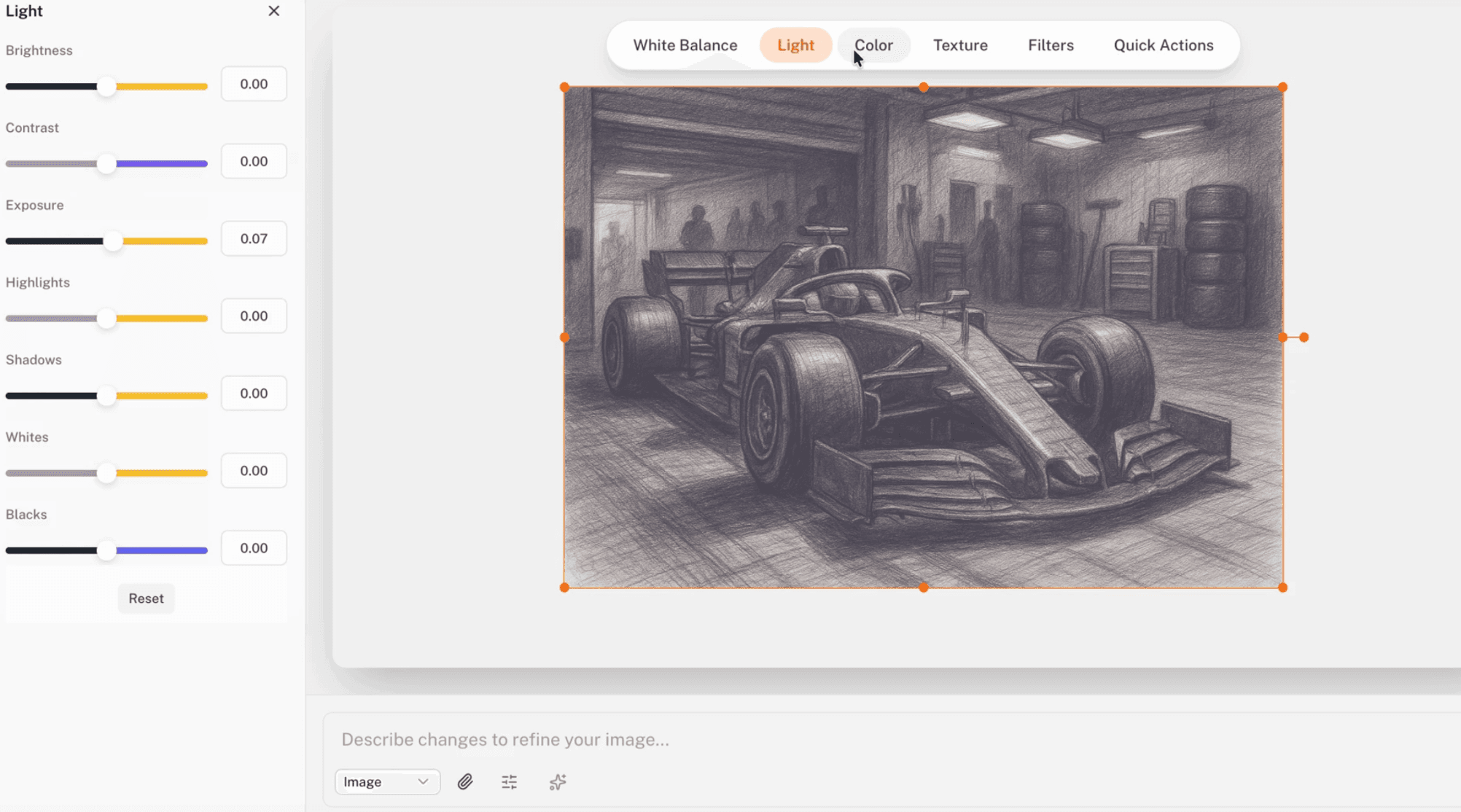
From rough AI sketch to a polished render, all inside Koha.
Here is a sneak peek at Koha in action. In this quick demo, we take an AI-generated pencil sketch of an F1 car and fine-tune it using our built-in editing suite. Generation gets you to a starting point. The editing suite is what gets you to a finished image.
Watch the F1 sketch get dialed in with lighting, color, filters, and a one-click background removal.
From generation to finished image
Most AI image editing workflows hit a wall the moment the generation comes back. The composition is close, but the lighting is flat, the colors are not quite right, and there is a background you do not want. The classic answer is to bounce the file out to another tool, lose your prompt history, and rebuild your context from scratch. We did not want that to be the answer in Koha. The editing suite sits next to the canvas, so the same F1 sketch you just generated is one click away from being refined.
Because nothing leaves the workspace, the original prompt and every iteration stays pinned in Koha's prompt history panel. If an edit goes too far, you do not start over, you step back. Generation and editing become two halves of the same loop instead of two disconnected jobs in two different apps.
Lighting, color, and texture in one place
The first pass on the F1 car is all about tone. Pull up the lighting controls to add depth and direction so the car reads three-dimensional instead of flat. Push the color balance to give it a richer, more cinematic feel. Adjust texture so the pencil-sketch quality reads cleanly without looking noisy. Every change is non-destructive, so you can dial things in without worrying about losing the original generation underneath.
Custom filters layer on top of the manual adjustments. Save a look you like, drop it onto another generation later, and keep your work visually consistent across a whole campaign or shot list. The filter is a saved recipe of edits, not a baked-in transformation, so you can still tweak any individual setting after applying it. For teams turning out a series of images, that consistency is what makes a generation pipeline feel like a real production tool.
One-click background removal
The last piece in the demo is the “Remove Background” quick action. One click, and the F1 car is isolated, ready to drop onto a new backdrop, a brand asset, or a clean transparent layer. No masks, no lasso work, no exporting and re-importing. For social cuts, hero crops, or product shots, this is usually the step that used to mean a separate trip into another editor.
Why it matters
AI image editing only pays off when generation, refinement, and finishing happen on the same canvas, with the same history beside you. The pencil sketch goes in, a finished image comes out, and you never leave Koha to get there. If you want to see where the generation side of that loop starts, the guide to generating images, video, and 3D in Koha covers it end to end.